Features
What Oghamix does, from recording to sharing.
Record a procedure, shape it, share it where your users are, then see what works. Here is the detail, feature by feature.
Record
The Chrome and Edge extension follows your clicks in any web software.
-
One step per click
A screenshot, the area to click and the text of the element, for every click and every entry.
-
Screen recording
Film the tab at the same time, with your voice if you like: drag and drop and animations are kept.
-
Re-record a section
Re-record only part of an existing demo, without touching the rest.
-
From your Word or PDF guides
Reuse your step-by-step guides: each screenshot becomes a step with its text, and a full guide becomes a module. A PowerPoint exported to PDF works too.
Polish
AI does the groundwork, you stay in control of every detail.
-
AI-written text
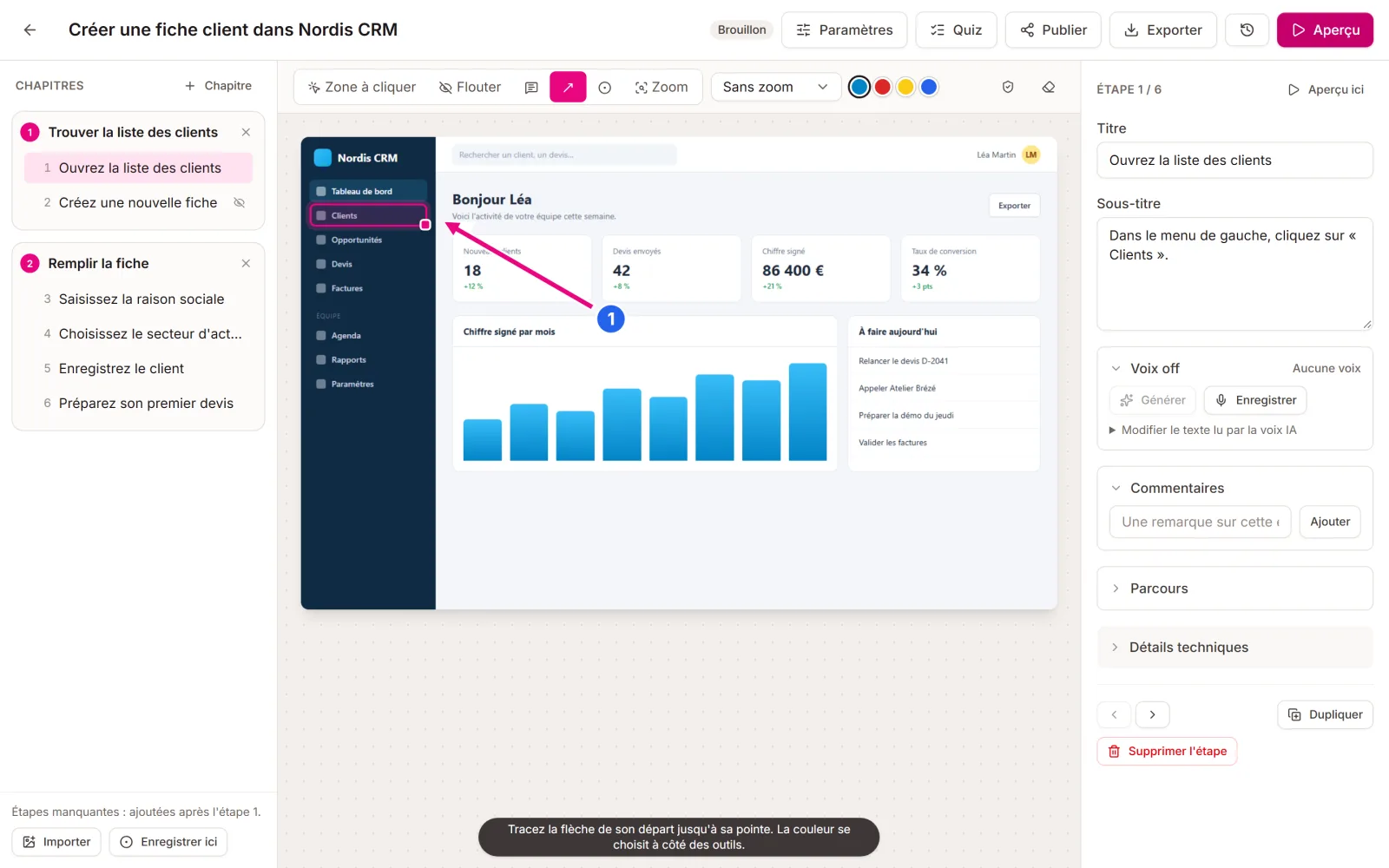
Titles, instructions and chapter breakdown, in the language of your choice.
-
Automatic blurring
Visible email addresses, phone numbers and names are detected and blurred. You can adjust the areas by hand if needed.
-
Area, text and zoom
Move the click area or the text bubble, frame the zoom with your mouse: you see what the learner will see.
-
Arrows and numbers
Point to a detail or number the elements on a screen, in four colours: they follow everywhere, right through to the exports.
-
Voice-over
Synthetic voice, a microphone recording, or your voice taken from the screen recording.
-
Quiz
Check questions at the end of each chapter and a final quiz, suggested by AI or written by you.
-
Branching paths
Choices that each lead to their own path, then join the main flow again.
-
Review and versions
Comments on each step, approval before sharing, and going back to an earlier version.
-
Translation into 18 languages
A translated copy in one click: text, quizzes and player.
Share
Where your users already are.
-
Link and embed
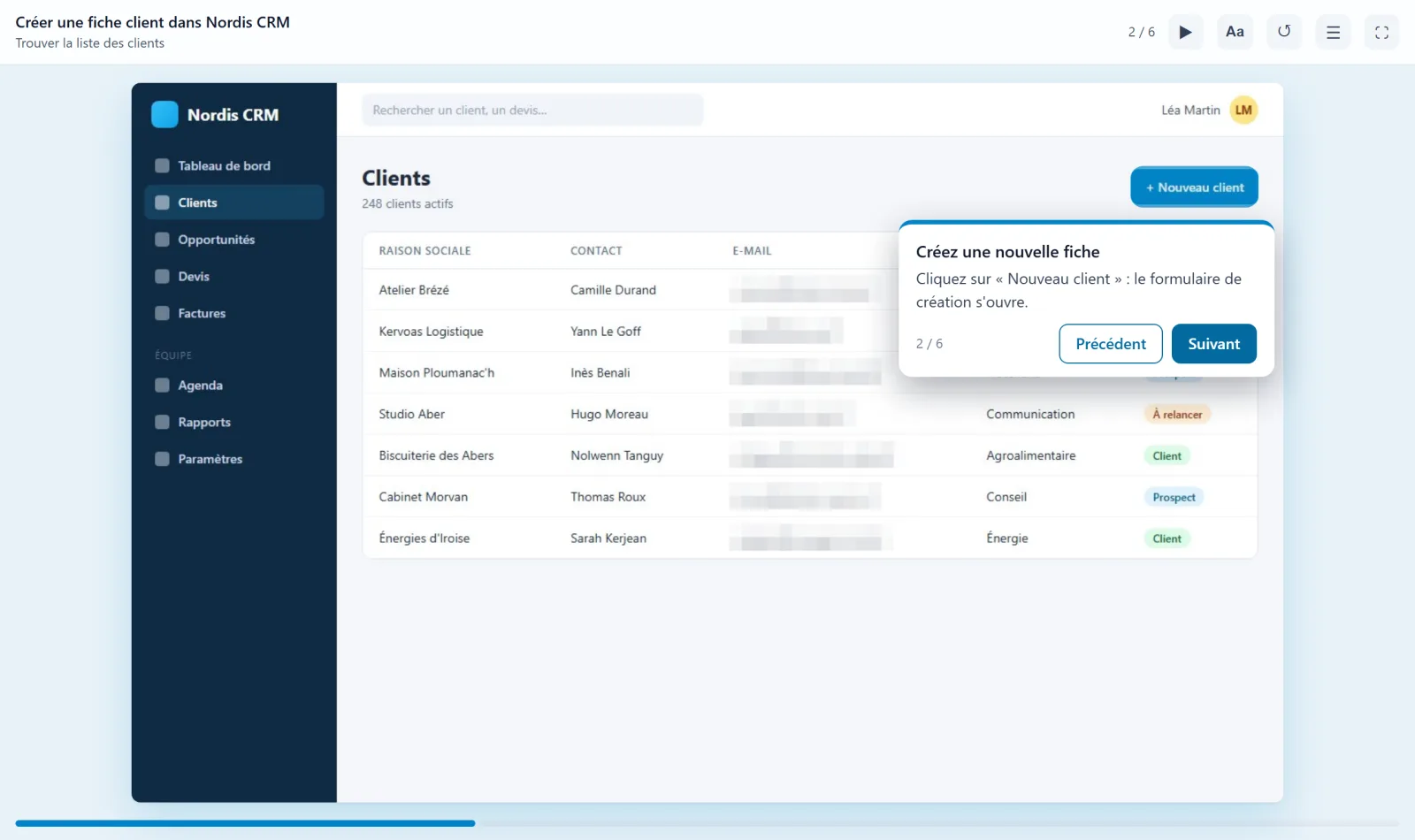
A public link, protected by a password or with an expiry date, and embed code for a web page.
-
Moodle, LTI and SCORM
Moodle plugin, LTI 1.3 for any compatible LMS, and a complete SCORM 1.2 or 2004 package.
-
Step-by-step guide
A Word, PDF or Markdown document, with screenshots and instructions.
-
Video
An edited video that zooms in on each click, or a video of the steps with the voice-over.
Measure and make accessible
Find out what works, and open your demos up to everyone.
-
Statistics
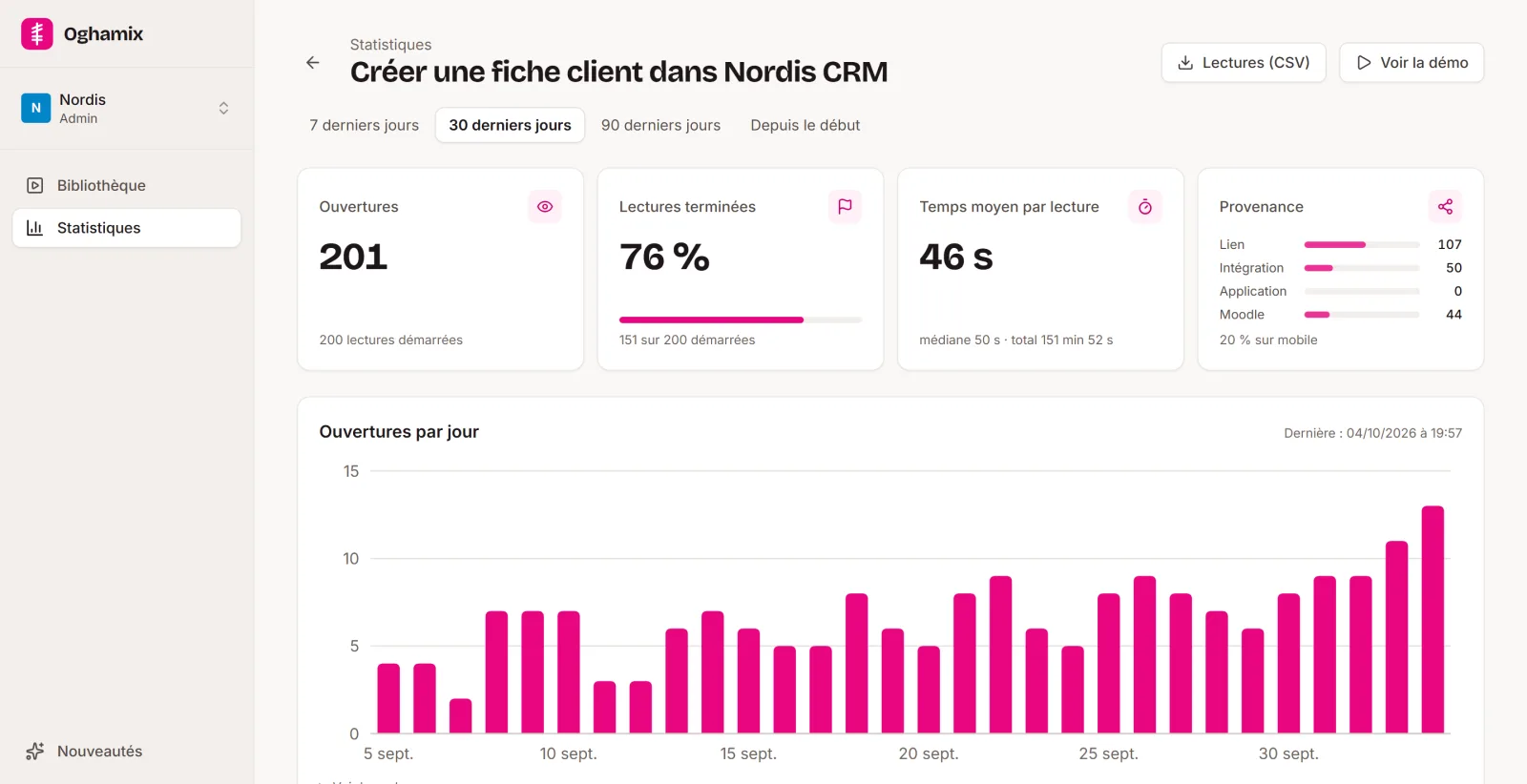
Views, completed demos, time spent, quiz results and CSV exports.
-
Learner feedback
A rating and a comment at the end of the demo, if you want one.
-
Subtitles
The voice-over text shown sentence by sentence, in time with playback.
-
Accessibility
A player you can use with the keyboard, adjustable text size, higher contrast, a dyslexia-friendly font and reduced motion.
See what Oghamix makes of your procedures.
Create your free account and record your first demo in a few minutes. No credit card needed.